 EasyAdminBlazor


Menu Management
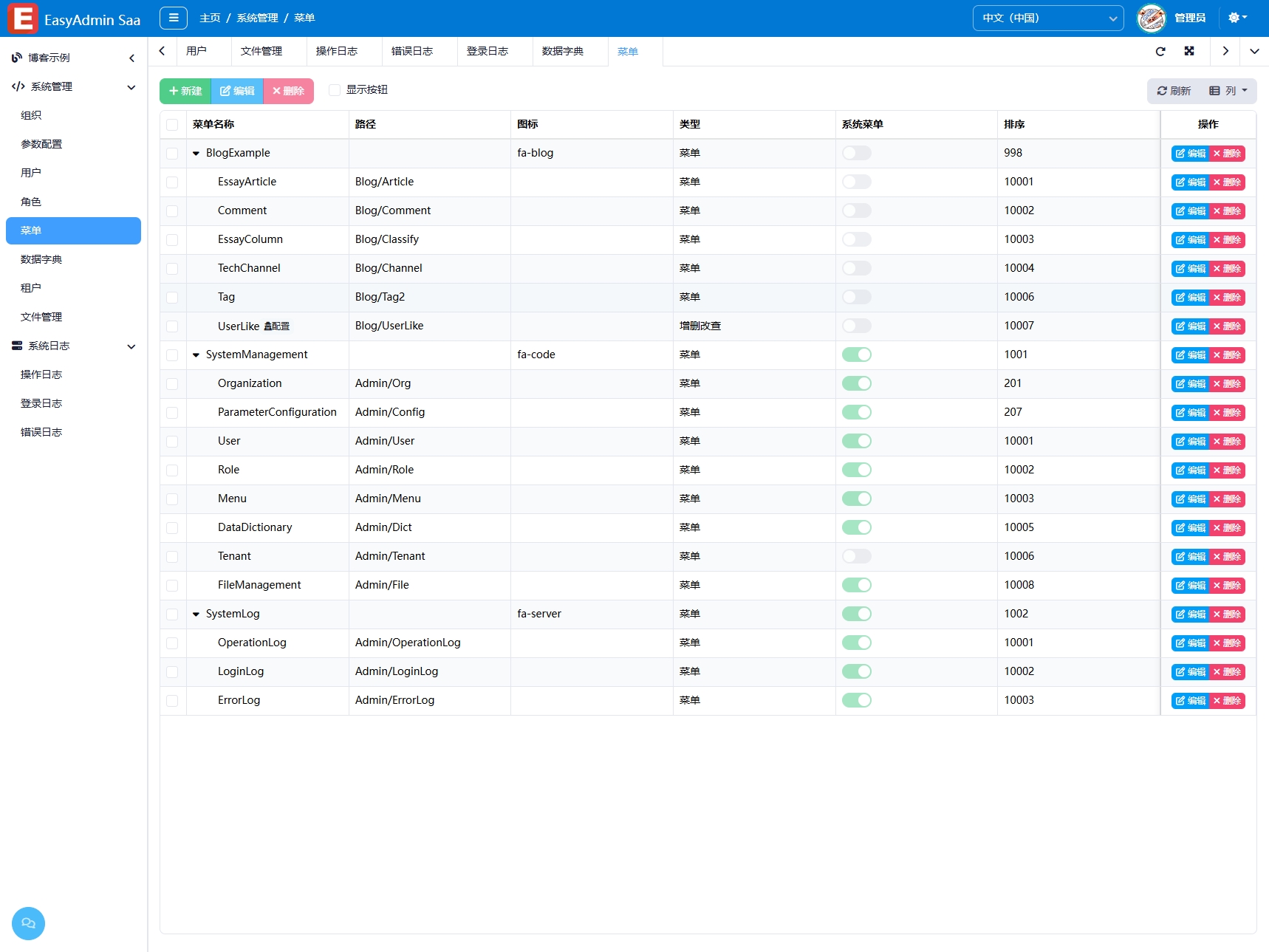
Overview
The Menu Management module is used to manage system navigation menus and page permissions. Through this module, administrators can flexibly create multi-level menu trees, configure menu attributes (name, icon, route path, etc.), control menu visibility, assign button-level permissions, and support auto-generating CRUD page code from entities. The flexibility of menu management determines the system's extensibility and user experience.
Usage
Accessing the Menu Management Page
Navigate to "System Management" → "Menu Management" in the system navigation bar.
Viewing the Menu Tree
The page displays all menus in a tree table format, clearly showing the hierarchical relationships. Click the expand/collapse icons to view or hide sub-menus.
Adding a Menu
- Click the "Add" button to open the menu entry window.
- Fill in the menu information:
- Name: The display name of the menu
- Icon: Select an icon identifier (e.g.,
fa fa-user) - Route Path: The corresponding page route (e.g.,
/Admin/User) - Parent Menu: Leave empty to create a top-level menu
- Type: Directory (for categorization only, no clickable route) / Menu (clickable) / Button (in-page action buttons like "Add", "Delete")
- Sort Order: Lower numbers appear first among siblings
- Hidden: When checked, does not show in the navigation bar
- Click "Save" to complete.
Editing a Menu
- Find the target menu and click the "Edit" button.
- Modify the menu information and click "Save".
Deleting a Menu
- Find the menu to delete and click the "Delete" button.
- If the menu has sub-menus, the system will prompt and cascade delete all sub-menus. Proceed with caution.
Button-Level Permissions
When adding a menu, select the type as "Button" to create button-level permissions (e.g., "Add", "Edit", "Delete", "Export"). After checking these button permissions in Role Management, users with that role can see and use these buttons.
Show/Hide Buttons
Toggle the "Show Buttons" switch to control whether menu items of type "Button" are displayed in the menu list.
Interface Description
Toolbar
- Add: Add a new menu
- Show Buttons: Toggle display of button-type menu items
Menu List
- Name: Menu display name and icon
- Route: Page access path
- Type: Directory / Menu / Button
- Sort: Display order among siblings
- Hidden: Whether hidden in the navigation bar
- Actions Column: Edit, Design (CRUD generator), Delete
Edit Dialog
- Basic Settings: Name, Icon, Route, Parent, Type, Sort, Hidden
- When the type is "Menu", the "Design" button is available for code generation
Related Entity
SysMenu— Menu entity, containingLabel,Path,Icon,ParentId,Type(Directory/Menu/Button),IsHidden,IsSystem,Sortand other fields