 EasyAdminBlazor


User Management
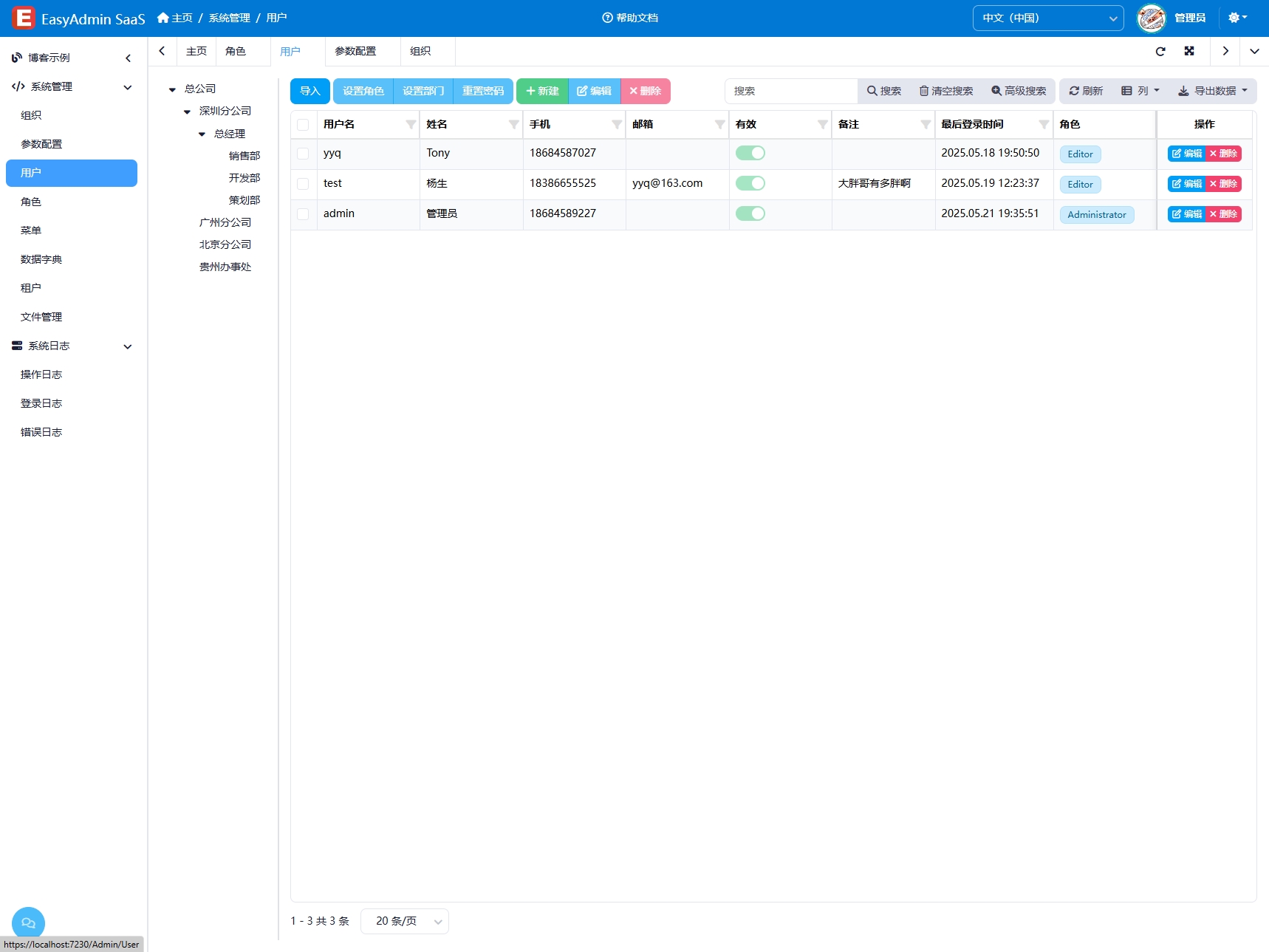
Overview
The User Management module is one of the system's core modules, used to manage all user account information, organizational affiliation, role permissions, and more. Through this module, administrators can efficiently add, edit, delete, search, import/export, batch operate, and reset passwords for users. It also allows assigning roles and organizations to users, enabling differentiated access to system resources. This module ensures system security and data confidentiality, guaranteeing that only authorized users can access corresponding functions and data.
Usage
Accessing the User Management Page
Navigate to "System Management" → "User Management" in the system navigation bar.
Searching Users
- Simple Search: Enter keywords such as username or nickname in the search box and click the search button for quick filtering.
- Advanced Search: Click the "Advanced Search" button to combine multiple criteria (such as status, role, organization, etc.) for precise querying.
- Organization Tree Filter: Click on an organization node in the left-side organization tree, and the right-side list will automatically filter users under that department.
Adding a User
- Click the "Add" button above the list to open the user information entry window.
- Fill in basic user information: username, nickname, password, and other required fields.
- Select the department: click the organization selector to open the organization tree and make a selection.
- Assign roles: check the corresponding roles in the role checkbox list (multiple selection allowed).
- Click "Save" to complete.
Editing a User
- Find the target user in the user list and click the "Edit" button on that row.
- Modify the user information and click "Save".
Deleting a User
- Select the user(s) to delete (multiple or all), and click the "Delete" button.
- After confirmation, the system will delete the selected users. This operation is irreversible, so proceed with caution.
Resetting Password
Click the "Edit" button on the user's row, enter a new password in the password field of the edit window, and save to apply the change.
Batch Operations
Supports batch role assignment, batch department assignment, and batch password reset. Select multiple users and click the corresponding batch operation button.
Import/Export
- Export: Click the "Export" button to export the current list data as an Excel file.
- Import: Click the "Import" button to upload an Excel file for batch creating or updating users.
- Supports downloading an import template.
Interface Description
Left Organization Tree
Displays the enterprise organizational structure. Clicking a department node automatically filters users under that department and its sub-departments on the right.
User List
- Username: Login account
- Nickname: Display name
- Department: User's organizational affiliation
- Roles: List of roles assigned to the user
- Status: Enabled / Disabled
- Actions Column: Contains "Edit" button
Edit Dialog
- Basic Information: Username, nickname, password, phone number, email, etc.
- Organization Selection: Tree selector for choosing the department
- Role Assignment: Checkbox list for selecting roles (multiple selection supported)
Related Entities/Services
SysUser— User entity, containingUsername,Nickname,Password,Org,Roles,IsEnabledand other fieldsSysRole— Role entitySysOrg— Organization entityIAggregateRootRepository<SysUser>— User aggregate repository